Release Notes - March 2026
💳 Easier Credit Notes
It’s now much easier to add credit to an owner’s account.
When adding a payment:
- If the payment is larger than the invoice amount, or
- If the payment is not attached to an invoice
JungleChief will automatically detect the extra amount and ask:
“Do you want to create a credit?”
Simply select Yes, and the remaining amount will be saved as a credit on the owner’s account.
If you have a Xero integration enabled, the credit will automatically sync with Xero.
🧾 Using Client Credit
Applying existing credit to an invoice is now very simple.
When making a payment from an invoice or the Transactions page:
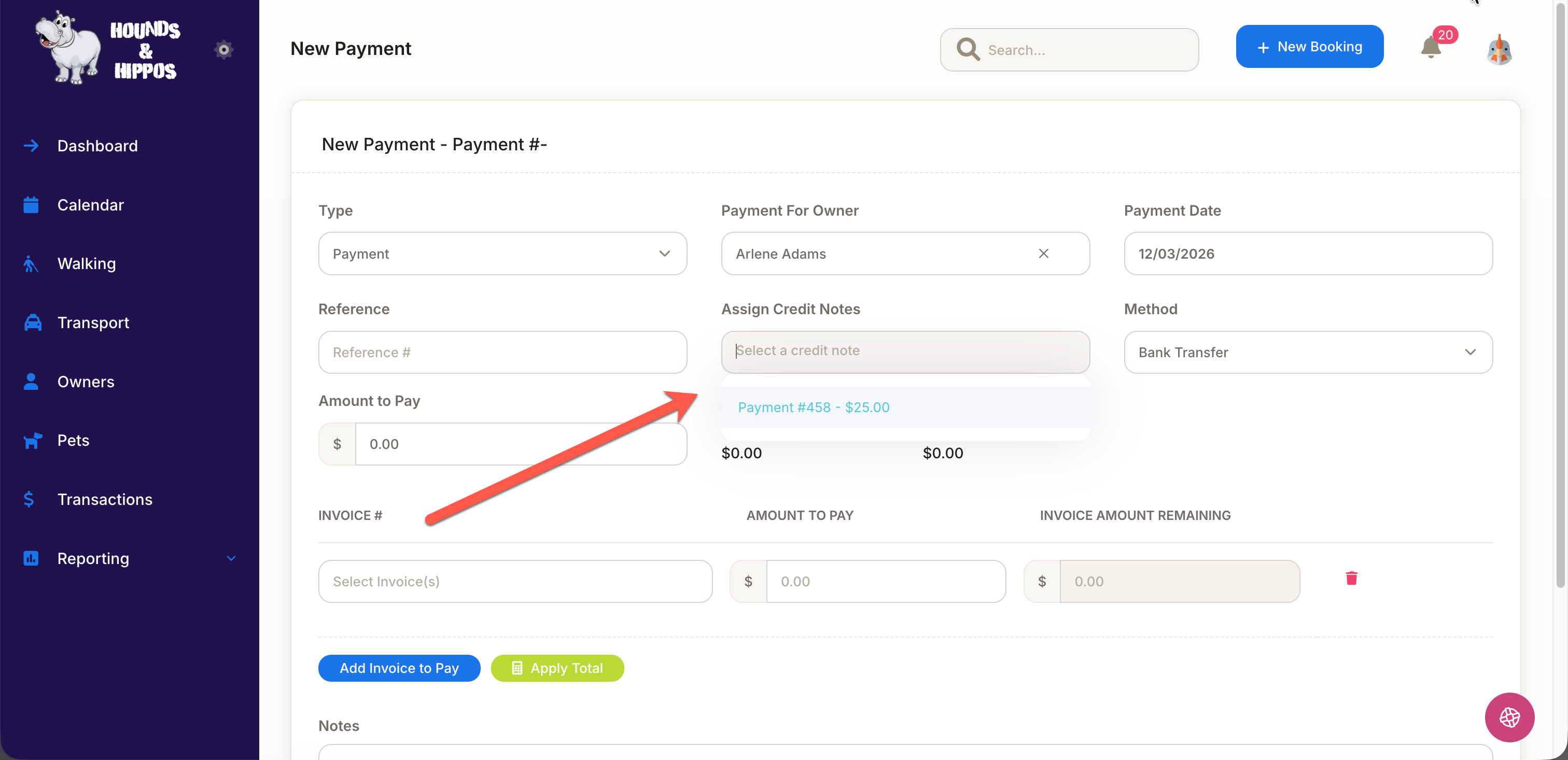
- Look for the “Assign Credit Notes” dropdown.
- Any available credits for that owner will appear in the list.
- Select the credit you wish to apply.
You can also add a cash or card payment at the same time if the credit does not fully cover the invoice.
👀 Viewing Available Owner Credit
If an owner has credit on their account, it will now appear in two places:
- Owner Details Page – shows the available credit balance.
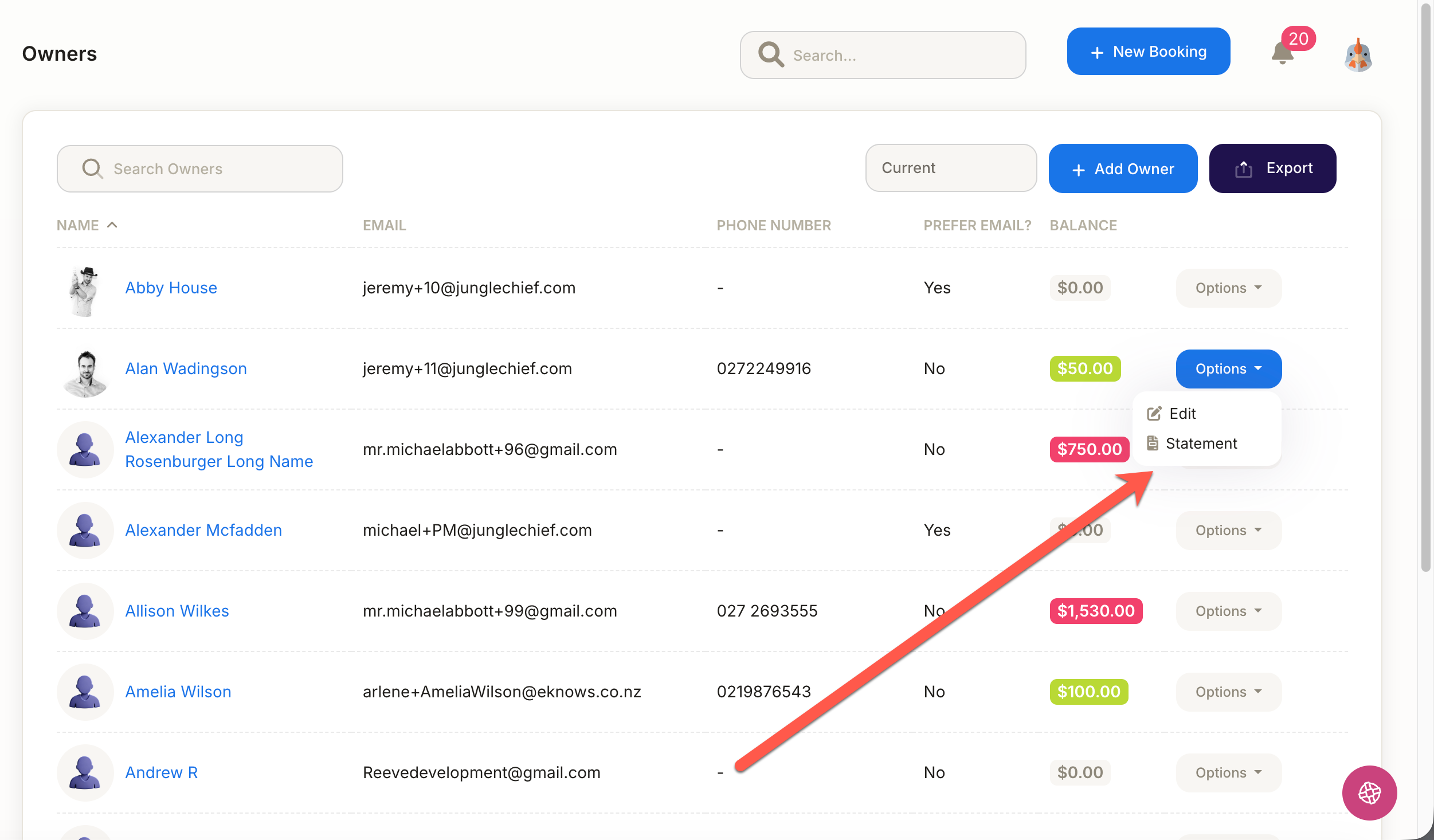
- Owner Statement – accessible from the Owner List → Options menu.
This makes it much easier to see when a client has funds available.
💸 Simpler Refunds
Refunding a payment is now quicker and easier.
To issue a refund:
- Go to the Transactions page.
- Click Edit (or select the payment number).
- Click the Refund button at the bottom of the page.
JungleChief will:
- Remove the payment from any attached invoices
- Return the invoice to an Unpaid status
You’ll then be prompted to record:
- Refund method (cash, bank transfer, etc.)
- Reason for the refund
Your user login details are also recorded for full traceability.
Stripe Payments
If the payment was made via Stripe, the system will automatically process the refund through Stripe back to the original credit card.
No manual refund is required.
📄 Owner Financial Statements
Based on user feedback, we’ve added a new Owner Statement feature.
You can access it from the Owner List → Options menu.
The statement allows you to:
- View all transactions
- Filter by date range
- Show only invoices that are due
Statements can also be:
- Exported
- Printed
- Emailed directly to the owner
This makes it much easier to provide customers with a clear account summary.
⭐ New Post-Booking “Thank You” Email
A new automatic email template has been added to the Communications settings.
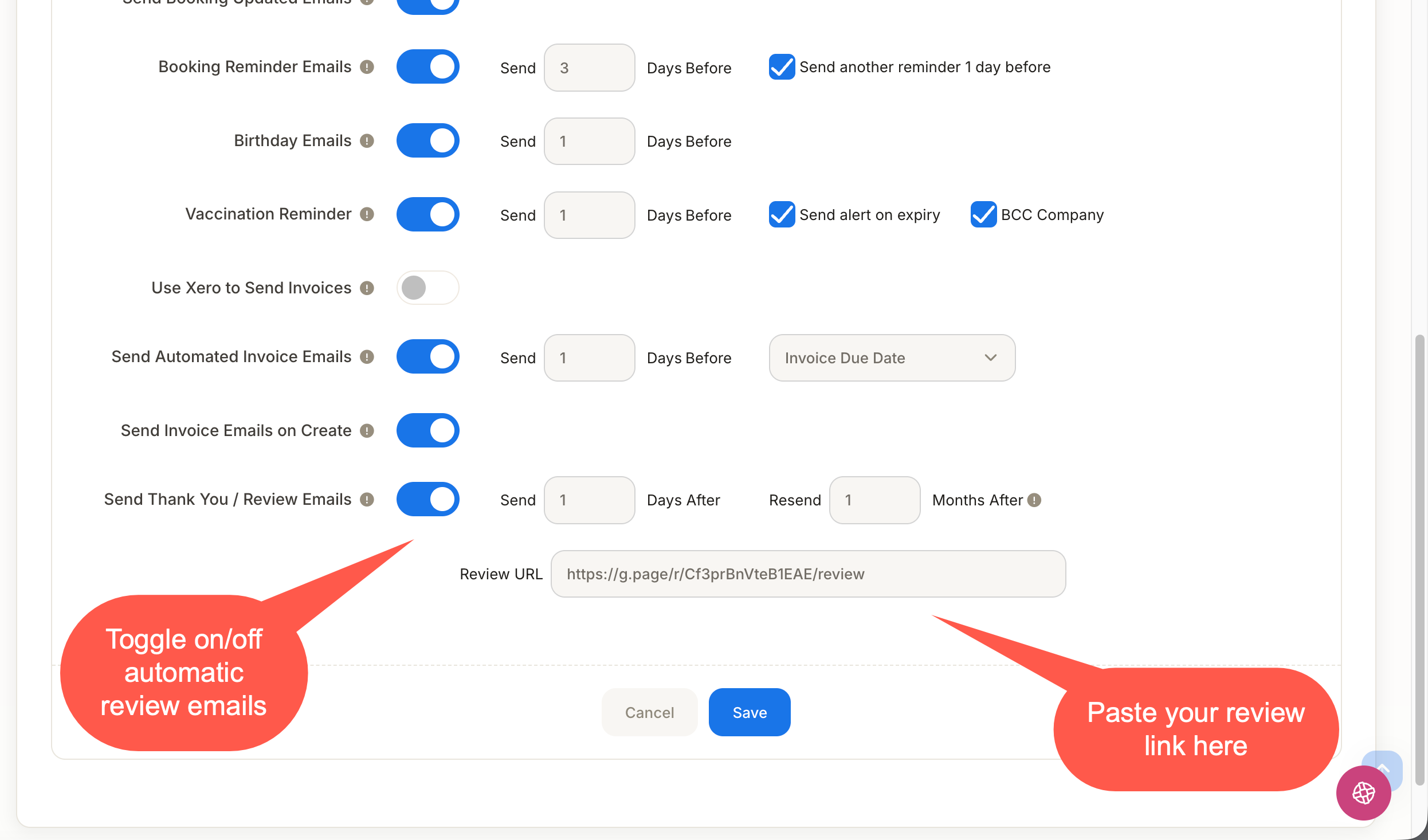
The Post Booking Thank You Email can be sent automatically after a booking is checked out.
Features include:
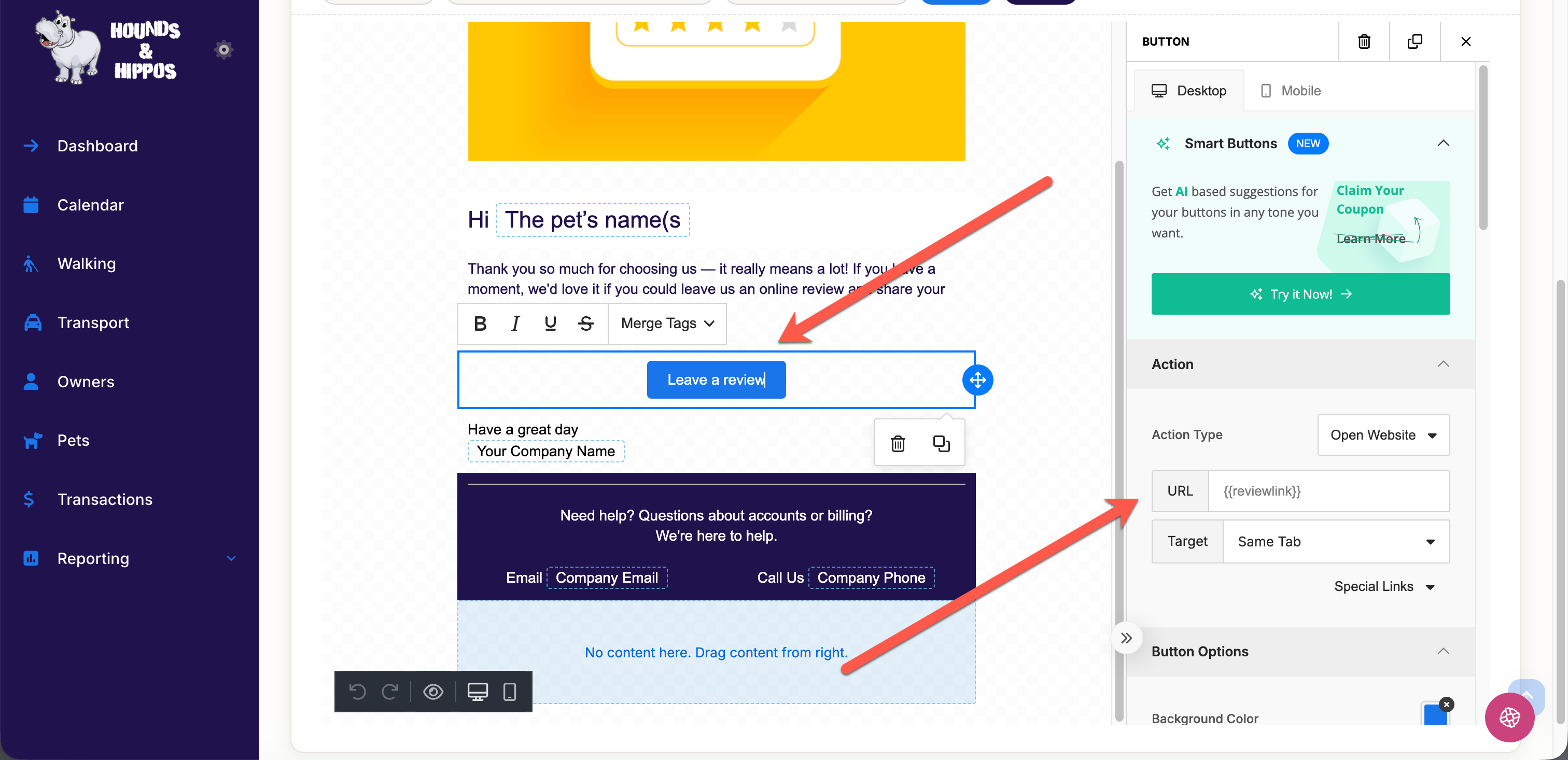
- Add a Review Special Link to encourage customer reviews
- Fully customisable email template
- Optional send frequency control
You can set how often a client receives the email, for example:
- Only once every 6 months, regardless of how often they book.
This helps businesses collect reviews without overwhelming customers with emails.
Go to Communications settings in the Admin menu
Then make any required changes to your Review Template