
Spaces
Spaces can be used for putting pets into specific places, such as pens or kennels. They are also responsible for the number of pets you can take bookings for. If you do not use individual spaces, you only need to setup a single space with a max occupancy.
For example, if you have two spaces with a maximum of 10 pets each, total number of pets you can book for that day will be 20.
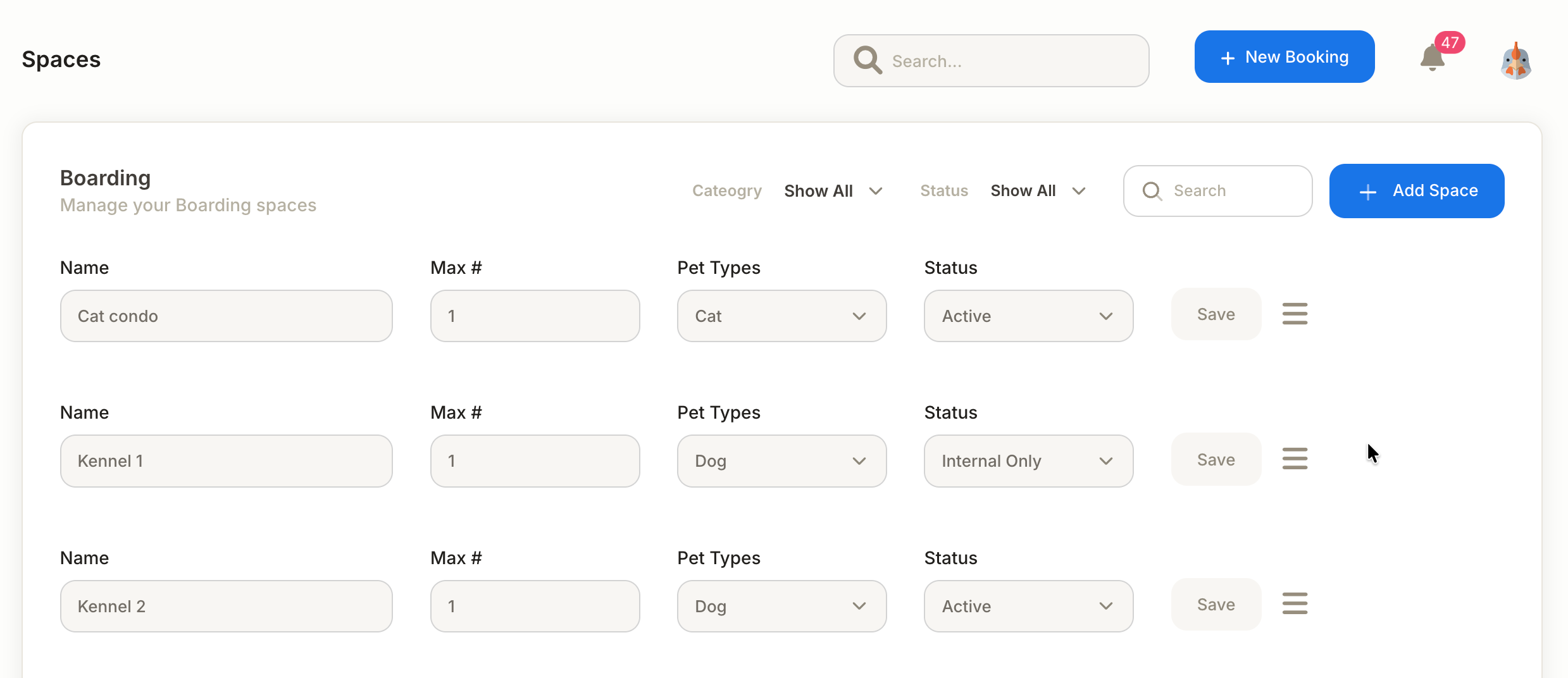
To create a new Space, click + Add Space in the top-right hand side.
- Name: This is what your space will be called.
- Max#: This is the maximum number of pets allowed in each space. When creating Walking Spaces, for example, you may name the Space after your van names and then you can select the maximum occupancy in each van.
- Pet Type: Is it for dogs or cats.
- Understanding Space Statuses: Active vs. Internal
Active Space: Visible and bookable online by pet owners, as well as staff members internally.
Internal Only Space: Reserved for staff use only and hidden from online client booking.
Closed: Not bookable for anyone, generally used for seasonal close-downs.
Example: If you have 10 Active spaces and 5 Internal spaces, pet owners can choose from 10 spaces when booking online, while staff can manage and book across all 15 spaces internally.
Remember to save after each line added.
To remove a space, click on the three lines on the 3 lines on the right-hand side, drop-down and select Delete.
Changing a Space Assignment
You can update a pet’s assigned space at any time using one of the following methods:
Option 1: Edit the Booking
- Open the booking
- Locate the Space field
- Select a new space from the available options
- Save the changes
Option 2: Drag and Drop (Calendar View)
- Open the calendar view
- Find the booking block
- Click and hold the booking
- Drag it to a new space
- Release to confirm
Notes
- JungleChief will automatically check:
- Space availability (occupancy limits)
- Species suitability (e.g., dog vs cat areas)
- If a space is not valid, the system will prevent the move
- Changes update the pet’s location tracking in real time
💡 Tip
Using drag-and-drop on the calendar is the fastest way to manage space changes during busy periods like check-ins or room reshuffling.