
Walking Basics
To see what Group Walks exist on any given day, you can go to the Walking Dashboard by clicking on Walking on the left-hand menu. The dashboard defaults to today's date however you can view Group Walks on different days by changing the date at the top of the page.
Depending on your authority settings, you may only be able to see your own walks or you may have access to everyone's walks.
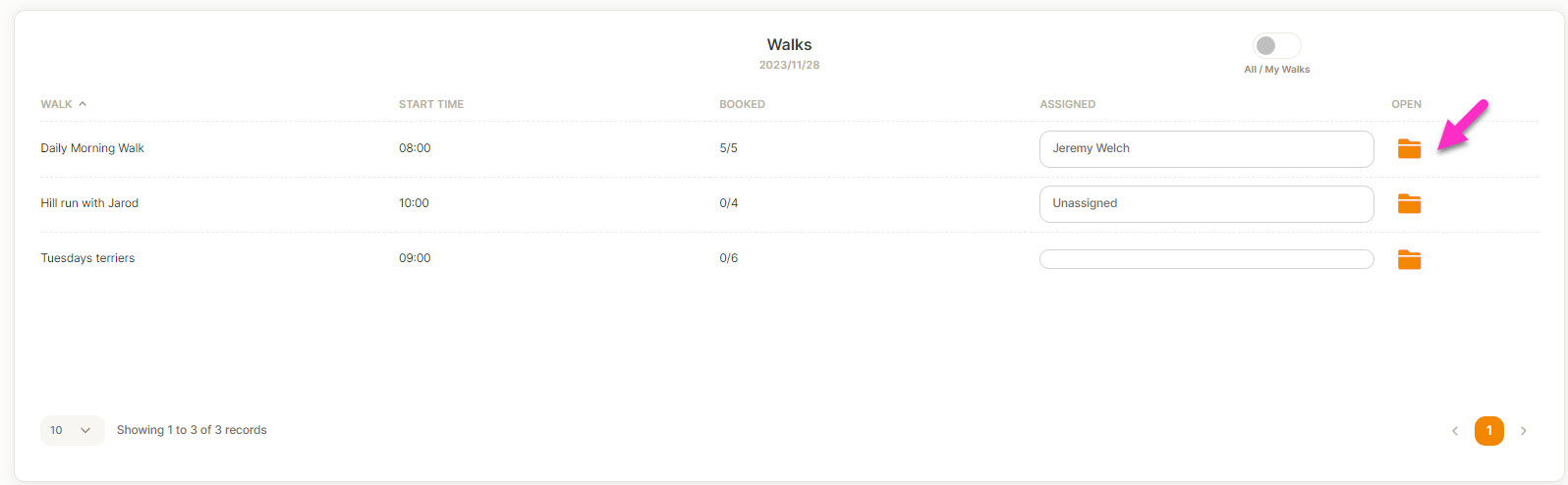
To see the individual dogs that make up a Group Walk, click on the 'closed' folder.
The page will scroll down and show each individual dog that is booked into that Group Walk.
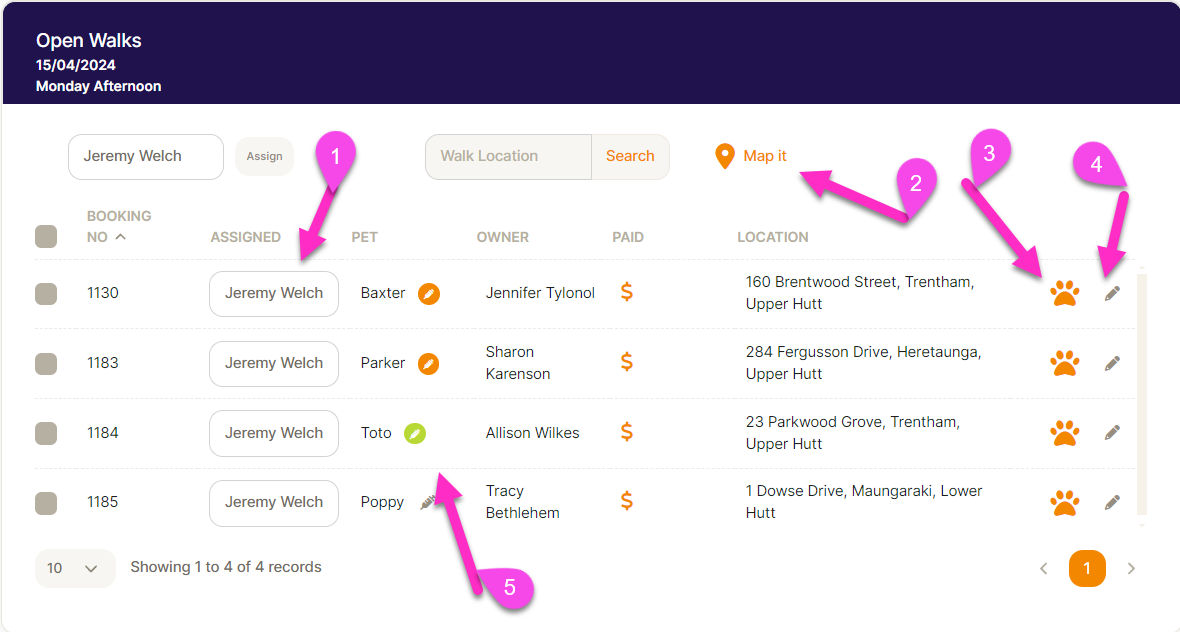
This screen displays the following:
- The name of the assigned walker shows: you can change who is assigned either individually or by selecting the whole walk and changing it (top of the screen).
- Once you have your walk ready you can click on Map it. This will take you to Google maps and have your whole Group Walk mapped out in order.
- Once you have physically picked up the dog from their address, you can click on the paw to check the dog in.
When you click on the paw icon next to the dogs name - a pop up box will appear.
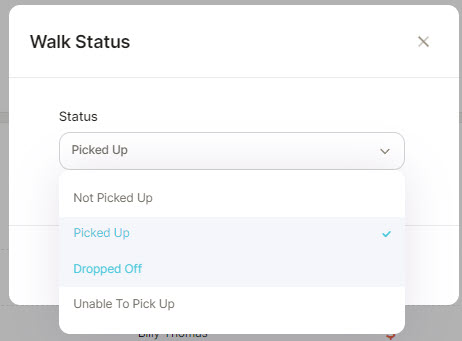
You have a number of options when arriving to pick up a dog from their address.
- Not Picked Up: when you have been unable to get to the address for any reason.
- Picked Up: when the dog has been been picked up successfully.
- Dropped Off: when you have successfully dropped the dog off after the walk.
- Unable to Pick Up: when you've arrived at the address but have not ben able to pick up the dog (eg. the dog is not home or the property access key is missing).
When you drop the dog off, you click on the Paw icon again to select Dropped off and it will change colour.
If you need to Edit the booking, eg. change walk date, click on the pencil icon next to the dogs name and the Booking screen will come up allowing you to edit.
The invoice is created on the creation of the initial booking.