
Communication
To setup automatic emails and email communication go to Administration > Communication.
Here you can create your own templates or use existing ones and change them to suit your needs.
The first tab is Email Settings and allows you to specify which emails you want sent automatically (eg. booking reminders, birthday emails and/or vaccination reminders).
With regards to sending invoices, please note the following.
- You can have invoices automatically send x number of days before pet checkin or before the invoice is due AND/OR you can have invoices send on creation (when the booking is made). If you have the toggle set to send invoices 5 days before checkin, and a customer makes a booking within that timeframe (eg. 4 days before checkin), an invoice will be sent when the booking is made. The owner will only receive 1 invoice.
- If you also choose to have invoices send when bookings are made AND 5 days before checkin, and a customer makes a booking 10 days before checkin - then the customer will receive the the first invoice, and a reminder.
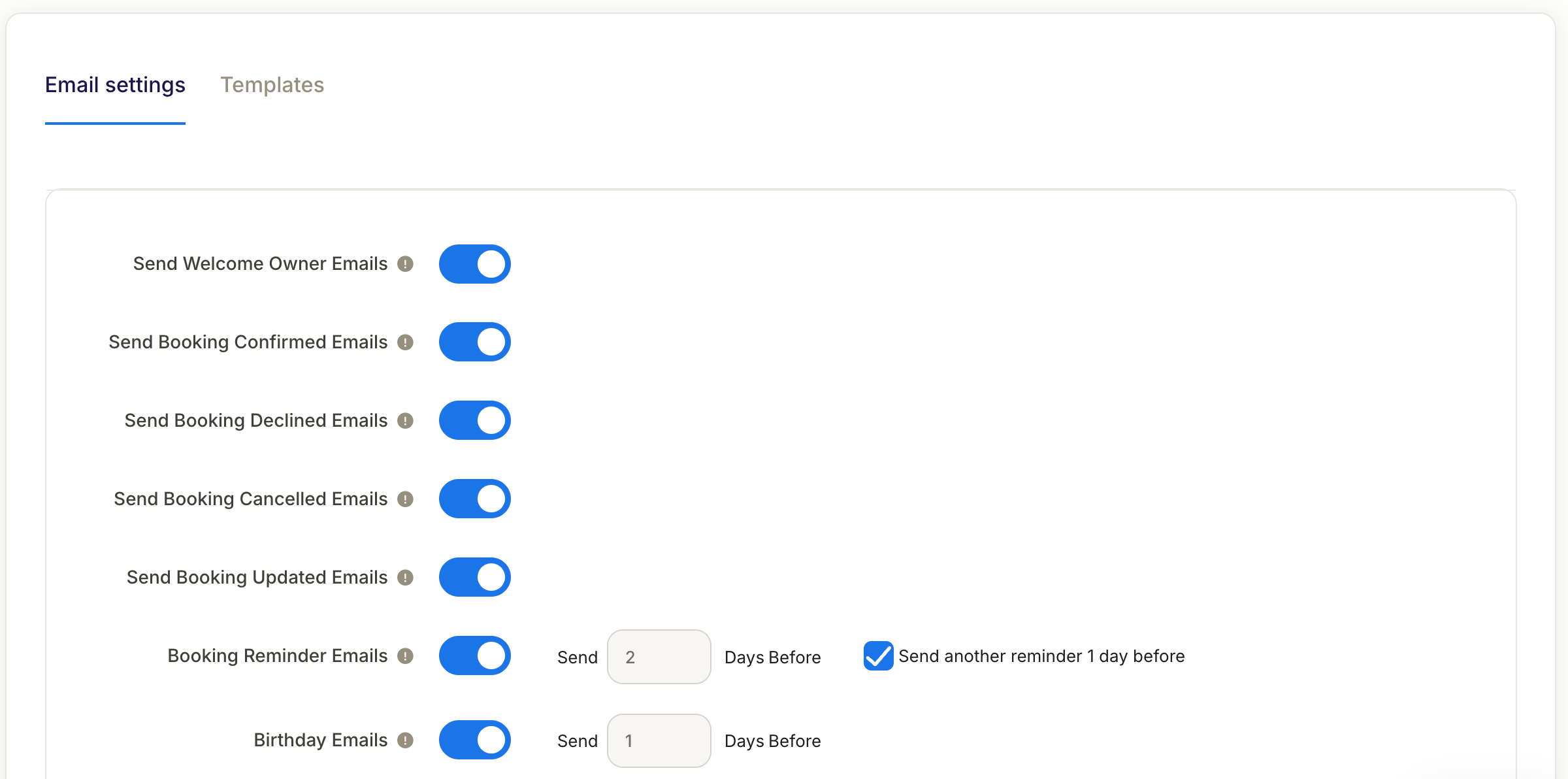
The second tab is Templates which is where you can create and edit your templates using your company branding and voice.
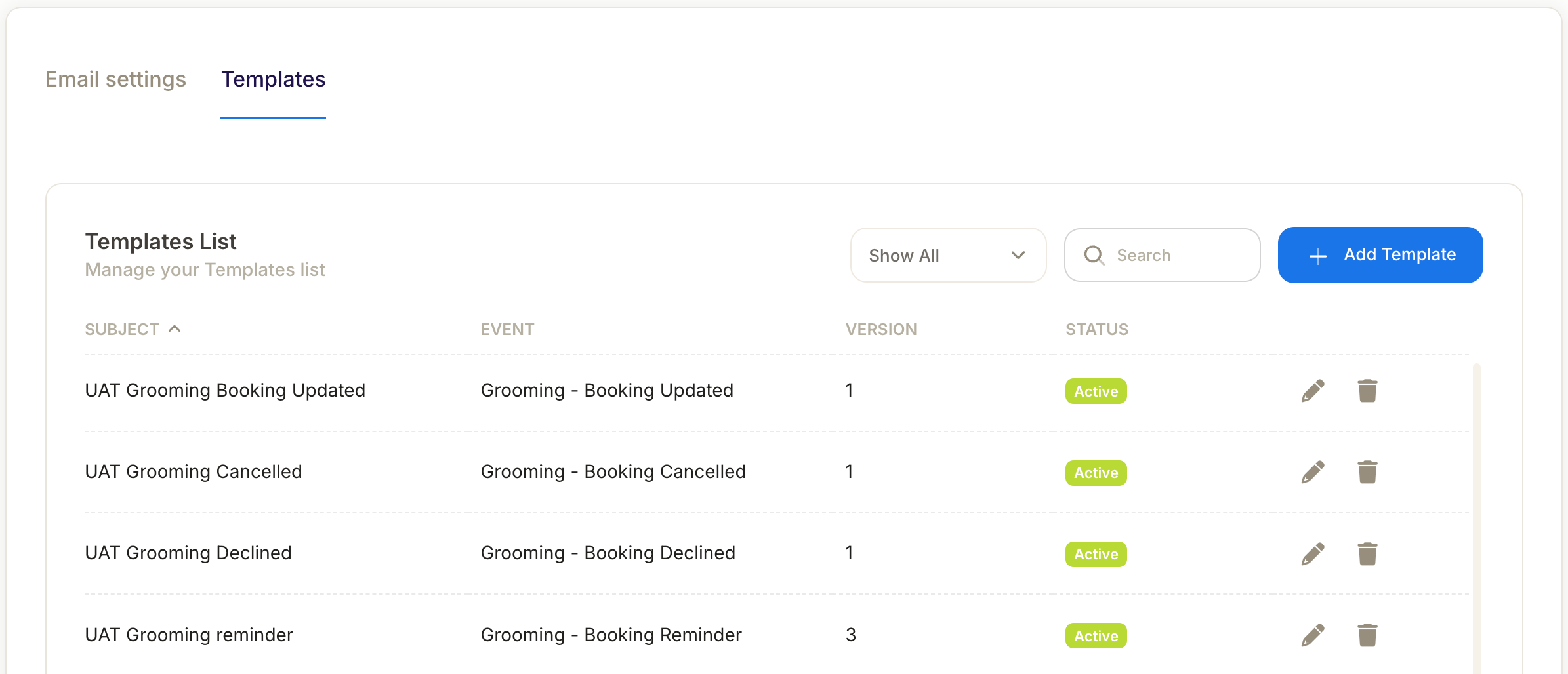
To Create a new email, click on + Add Template
- You can choose to work with an prebuilt template or start from scratch. You can clic on a pre-built template to see how it will look.
- Each new template will start as Draft. This will need to be saved as Active for it to be live.
- Also remember to select the Event Type (such New Booking email) and the Email Subject line.
To add/change images or your logo either drag a an Image tile from the Content section onto the email template, or click on an existing image and then upload a new image to replace it.
Note: There is a Desktop tab and a Mobile Tab, so remember to check your email looks good in both modes.
When editing text, you will be able to add or change formatting as-well-as merge fields. The usable merge fields are displayed in the drop-down Merge-Tags dropbox in the text formatting window.
Note: The Owner Portal Link is available as a merge field.
Remember to name and save your template.