
Blockout Dates
There will be times during the year that you need to block out certain dates where one or more services will not be available.
To set up Blockout Dates, go to Administration > Blockout Dates and select + Add Blockout Date.
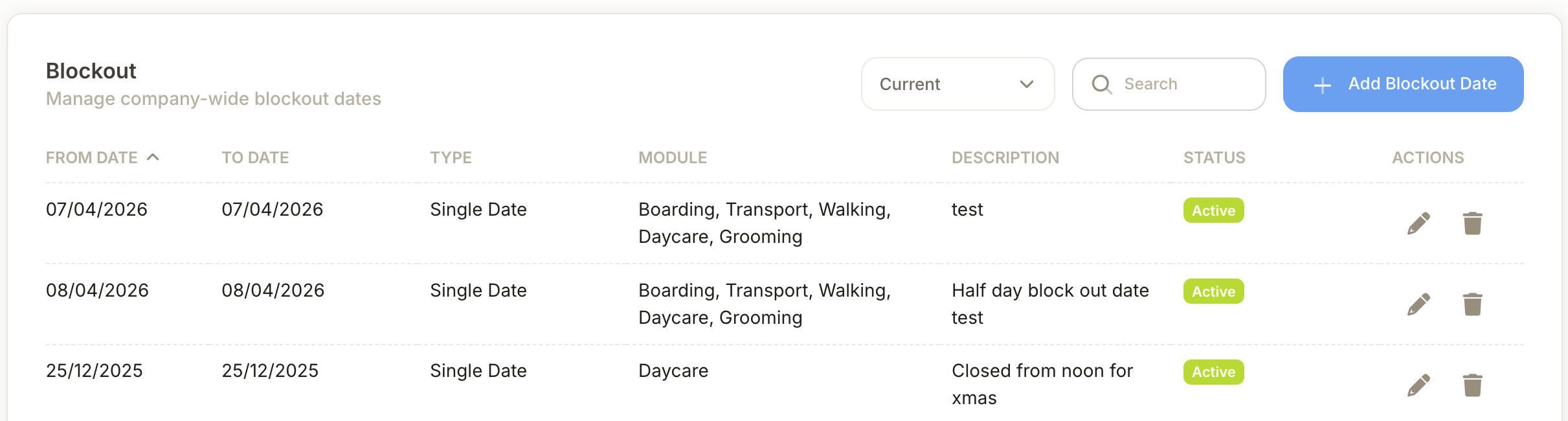
When creating a blockout date for the whole business, enter the following:
- Type: enter either a Single Date, Date Range, Special day (eg. Weekends). Special Day allows you to specify blockout day for recurring day/s in a date range.
- Module: Select affected service or module. Multiple services can be selected.
- Description: your reason for the blockout.
- Spaces: you can choose to block only selected spaces if necessary.
Creating a blockout date for a groomer is done under each specific groomer. Blockout dates for individual groomers cannot be recurring. They can be for a specific day, a date range or a specific time period (eg. from 3pm-4pm).
Note: If you get a pop up saying there is already bookings and do you want to carry on? if you say yes it will cancel the booking.