
Using JungleChief
Dashboard Overview
Introduction
The Dashboard is your central hub for managing daily operations in Hounds & Hippos. From this screen, you can monitor pet check-ins and check-outs, view bookings, track tasks, and access all major features of the software.
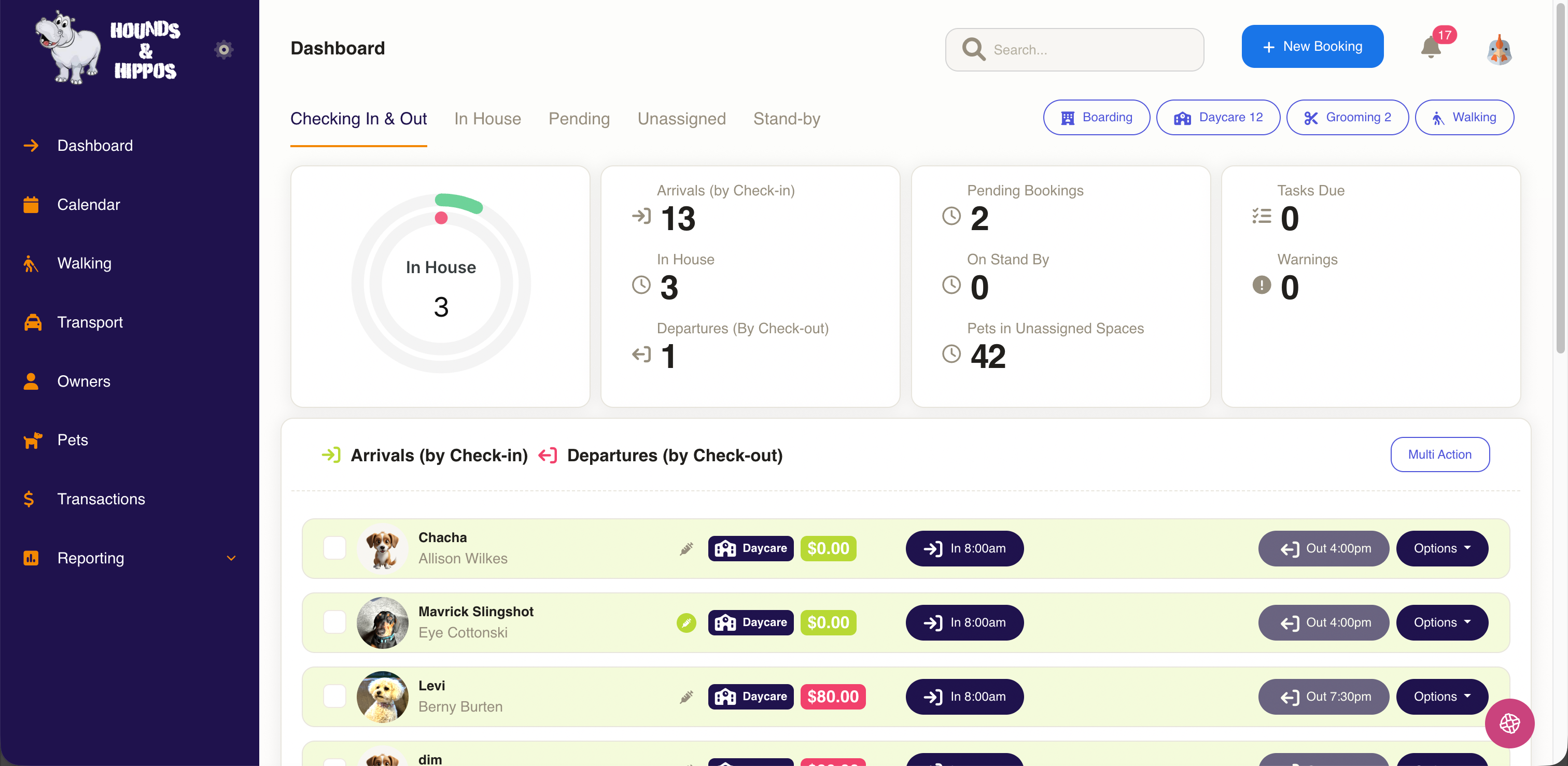
Quick Stats Overview
At the top of your dashboard, you'll find key metric cards that provide an at-a-glance view of your operations:
Displays:
- Total arrivals expected: Number of pets scheduled to check in today
- In House: How many of those have already checked in
- Departures: Number of pets scheduled to check out today.
- Total pending: Bookings awaiting confirmation
- On Stand By: Number of grooming clients waiting for an earlier appointment slot
- Pets in Unassigned Spaces: Pets that haven't been assigned to a specific group or space yet.
- Number of tasks: Outstanding tasks that need completion
- Warnings: Any alerts or items requiring immediate attention. This may be pets that are overdue for check out.
Dashboard Tabs
The dashboard features five tabs that filter your view of current bookings:
Checking In & Out (Default View)
This is your primary working view, showing all pets expected to arrive or depart today. Use this tab to:
- Check pets in when they arrive
- Check pets out when they leave
- Monitor arrival and departure times
- Process payments
In House
Displays all pets currently on your premises. This gives you a complete view of who is in your care at any moment.
Best used for:
- Taking attendance
- Emergency situations requiring a quick headcount
- End-of-day verification
Pending
Shows bookings that haven't been confirmed yet. These require your review and approval before becoming active bookings.
Action required:
- Review booking details
- Confirm or decline the booking
- Communicate with pet owners if needed
Unassigned
Lists pets that have been checked in but haven't been assigned to a specific space, group, or staff member (if your facility uses these features).
Action required:
- Assign pets to appropriate spaces
- Allocate pets to play groups
- Ensure all pets have proper placement
Stand-by
Shows grooming clients who have requested to be contacted if an earlier appointment becomes available.
How to use:
- Check this list when appointments are cancelled
- Contact clients to offer the available slot
- Convert stand-by bookings to confirmed appointments
Pet List View
The main section of the dashboard displays individual pet bookings in an easy-to-read list format.
Information Displayed
Each pet entry shows:
- Pet photo and name (e.g., "Chacha")
- Owner name (e.g., "Allison Wilkes")
- Service type badge (e.g., "Daycare" with building icon)
- Price displayed in green (e.g., "$0.00"). This is any money owing.
- Check-in time (e.g., "In 8:00am") with arrival icon
- Check-out time (e.g., "Out 4:00pm") with departure icon
- Options menu for additional actions such as taking payment.
Visual Indicators
Status Icons:
- ✓ Green checkmark: Pet has been checked in
- 💲 Price colors: Green ($0.00) indicates paid or no charge; Red indicates amount due
Quick Actions
From each pet entry, you can:
- Click the pet name - View full pet details
- Click check-in/out times - Process check-in or check-out
- Click Options - Access additional actions (modify booking, etc.)
Top Navigation Bar
Search Function
The search bar allows you to quickly find:
- Pet names
- Owner names
- Booking references
- Phone numbers
Tip: Start typing to see instant results.
New Booking Button
The blue "+ New Booking" button in the top right creates a new reservation. Click this to start the booking process for any service type.
Quick Service Filters
The four pill-shaped buttons provide one-click filtering:
- Boarding - View only boarding bookings
- Daycare - View daycare bookings (number shows current count)
- Grooming - View grooming appointments (number shows current count)
- Walking - View walking services
Multi Action Button
Located at the bottom right of the arrivals/departures section, the "Multi Action" button allows you to perform bulk operations on multiple pets at once.
Common uses:
- Check in multiple pets simultaneously
- Send group notifications
- Apply bulk updates
Left Sidebar Navigation
The purple sidebar provides access to all major sections of the software:
- 🏠 Dashboard - Return to this main view
- 📅 Calendar - View bookings in calendar format
- 🚶 Walking - Manage walking services
- 🚗 Transport - Handle pickup/delivery services
- 👤 Owners - Access pet owner details
- 🐕 Pets - View all pet profiles
- 💰 Transactions - Financial records and payments
- 📊 Reporting - Generate business reports and analytics
Best Practices
Start of Day:
- Review the "Checking In & Out" tab
- Review "In House" tab to ensure expected pets are shown.
- Check the "Unassigned" tab to ensure all spaces are allocated
- Print "Daily Report" in the Reports menu area if you need a printed version of which pets are checking in and out today.
During the Day: 4. Keep the dashboard open for quick check-ins/check-outs 5. Monitor the "In House" count for accurate attendance 6. Address any items in "Pending" that require confirmation
End of Day: 7. Verify all expected check-outs have been processed 8. Review "In House" tab to confirm overnight guests 9. Check "Tasks Due" for any incomplete items